
How to Export DBS, OCBC, and UOB Transactions to Google Sheets
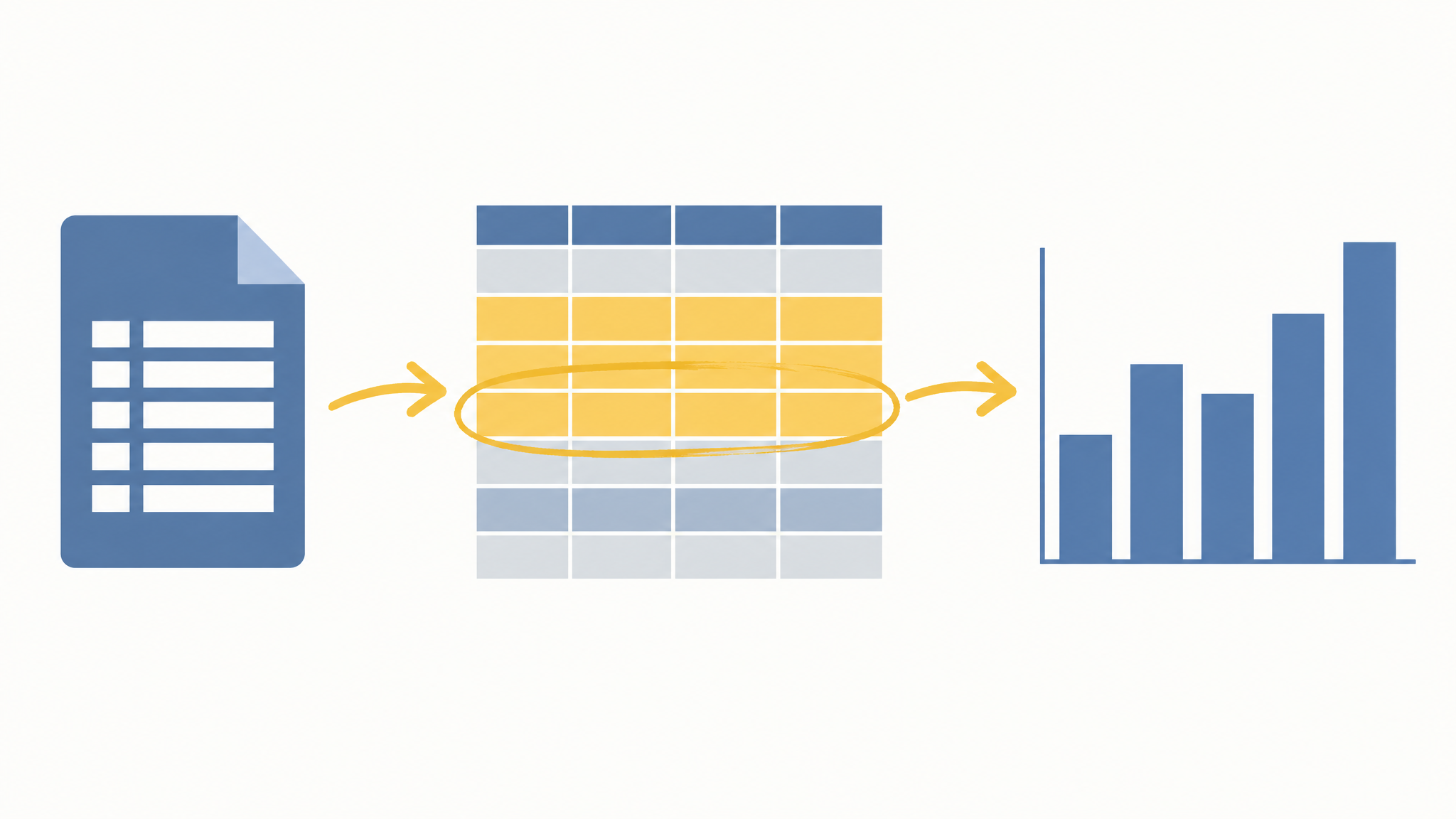
How to Export DBS, OCBC, and UOB Transactions to Google Sheets
Last updated: 1 October 2026
Singapore banks will hand you your own transaction data as a CSV file, and Google Sheets will open it in about five minutes. The download is not the hard part. The cleanup is. PayNow and NETS lines arrive as strings of reference numbers, and DBS, OCBC, and UOB each format their columns differently, so a file that imports cleanly from one bank breaks the formulas you built for another.
This guide covers the export path for each of the three banks, the import settings that keep your columns intact, and the formulas that turn PayNow and NETS noise into a categorized ledger. It is written for personal current, savings, and credit card accounts through the web banking portals. Corporate platforms like DBS IDEAL and UOB BIBExpress work differently and are out of scope here.
Why the export step is where most Singapore budgets die
The median Singapore household takes home around S$4,000 a month and spends about S$1,986 of it. Tracking that gap is the whole game, and the tools that promise to do it automatically mostly do not work here. YNAB has no native bank sync for Singapore accounts. Tiller, which pipes transactions into Google Sheets, leans on the same US aggregators and has no reliable DBS, OCBC, or UOB connection. So the CSV export is not a workaround. For most people reading this, it is the only path that keeps the numbers accurate, and it is also the path that keeps your statement off someone else's servers, which is the argument in why I will not paste a bank statement into an AI chatbot.
The problem is that a raw bank CSV is not a budget. It is a list of strings that a machine wrote for a machine.
What each bank actually gives you
| Bank | Where to export | Format | The catch |
|---|---|---|---|
| DBS / POSB | digibank or iBanking, open the account, then Download statement or Export transactions | CSV for most accounts | Credit card statements are often PDF only, and the date range is capped |
| OCBC | Internet banking, Accounts, Transaction history, then Export | CSV | Debit and credit land in separate columns |
| UOB | Personal internet banking, open the account, Transaction history, then Download | CSV | The amount column sometimes carries the text "SGD" |
Menu labels move around when banks redesign their portals, so treat the paths above as the shape of the journey rather than a script. The export button is always inside the account's transaction history or statement view.
Step 1: Export the file
Log in to your bank's web portal on a desktop browser. The mobile apps usually show transactions but do not always offer a full CSV download, which is why this step is easier on a laptop.
Pick the widest date range the bank allows, usually the last 12 months or a custom range. Export one account at a time and name the file after the account, for example dbs-posb-2026.csv. When you merge three banks later, you will be glad you did.
If your credit card only offers a PDF, you have two options. Some banks will email a CSV if you ask through support. Otherwise you are stuck converting the PDF, and that is a separate problem worth its own workflow.
Step 2: Import into Google Sheets without wrecking the columns
Open a new Google Sheet and go to File, then Import, then Upload. Choose your CSV.
On the import screen, set the separator to comma and leave "Convert text to numbers, dates, and formulas" turned on. For the import location, pick "Insert new sheet" rather than "Replace current sheet". Replacing wipes whatever is already in the tab, including the formulas you spent an evening writing.
Bank exports often carry two or three junk rows at the top, things like the account number or a "balance brought forward" line. Delete them so row 1 is your header. Your columns should end up as Date, Description, and Amount. If your bank splits debit and credit, add a fourth column and combine them:
=IF(C2="",-D2,C2)
That formula assumes debits sit in column C and credits in column D. Adjust the letters to match your file.
Step 3: Clean the PayNow and NETS strings
This is the step that decides whether the whole system survives. A PayNow line might read PAYNOW TRF 88231904 JOHN TAN and a NETS line might read NETS QR 4471 22/09 NTUC FP. Neither is readable, and neither will match a keyword lookup until you strip the noise.
Add a helper column next to Description and strip the long reference numbers:
=TRIM(REGEXREPLACE(B2,"[0-9]{5,}",""))
Then remove the payment-rail prefixes so the merchant name is what remains:
=TRIM(REGEXREPLACE(C2,"(?i)^(PAYNOW|NETS|FAST|GIRO|IBG)\s*(TRF|QR|POS|S)?\s*",""))
The (?i) makes the match case-insensitive, which matters because banks are inconsistent about capitalisation. Run the second formula on the output of the first, or nest them if you prefer one column.
If your amount column arrived with text in it, normalise it:
=VALUE(REGEXREPLACE(D2,"[^0-9.\-]",""))
That strips everything that is not a digit, a decimal point, or a minus sign, then converts the result to a number.
Step 4: Categorize with a lookup table
Create a second tab called Cat. In column A put the keyword, in column B the category. Keep the list short and specific:
| Keyword | Category |
|---|---|
| NTUC | Groceries |
| COLD STORAGE | Groceries |
| SMRT | Transport |
| GRAB | Transport |
| ANYTIME FITNESS | Gym Membership |
| YOUTUBE | YouTube Premium |
| SHOPEE | Shopping |
| KOPITIAM | Food/Dining |
Then in your ledger, one formula assigns a category to every row:
=ARRAYFORMULA(IFERROR(INDEX(Cat!$B$2:$B$40,MATCH(TRUE,ISNUMBER(SEARCH(Cat!$A$2:$A$40,$C2)),0)),"Uncategorized"))
It searches each cleaned description for every keyword in the list and returns the first match. Anything it cannot place lands in "Uncategorized", which is exactly what you want. A short list of leftovers is a to-do list. A silent wrong guess is a budget you cannot trust.
If you want the longer version of this, with the exact formulas for a 1,200-row ledger, the categorization walkthrough covers it in detail.
Step 5: Kill the duplicates before they double your spending
When you import overlapping date ranges, the same transaction can appear twice. Your spending total then reads higher than reality, and you will spend an evening hunting a purchase that never happened.
Sort by date, then add a flag column:
=COUNTIFS($A$2:$A2,$A2,$C$2:$C2,$C2,$D$2:$D2,$D2)>1
Every row that returns TRUE is a repeat of an earlier row. Filter on TRUE, delete those rows, and clear the filter. Do this after every import and the problem never compounds.
Where CalmExpense fits
The export and cleanup above is the part most people quit on, and I understand why. It is an hour of formula work before you see a single chart, and one broken reference undoes the lot.
CalmExpense is a dashboard that runs inside your own Google Sheet. It reads the CSV you import, handles the Singapore-specific cleanup for PayNow, NETS, and the DBS, OCBC, and UOB formats, and draws the charts without you writing the formulas. Your data stays in your Google Drive, no bank login is shared, and it is a one-time $29.90 rather than a subscription. The honest limits: there is no mobile app yet, the import is still manual, and the OAuth screen shows an unverified app warning while the user count is under 100. If you want to see the dashboard running on your own export, you can start the free trial without a credit card.
If you would rather keep building it yourself, the CSV import guide walks through the full setup from a blank sheet, and the 15-minute monthly review is the habit that keeps it alive once the import works.
FAQ
Does DBS let you export transactions as CSV? Yes, for most deposit accounts through digibank or iBanking. Credit card statements are the exception and often come as PDF only.
Can I connect my Singapore bank to Google Sheets automatically? Not reliably. The add-ons that do this depend on US aggregators like Plaid, and Singapore banks do not expose the APIs those tools need. Manual CSV import is the dependable route.
Why do PayNow transactions show up as gibberish? PayNow and NETS lines carry reference numbers and rail codes instead of clean merchant names. The formulas in Step 3 strip those out.
Is it safe to import my bank CSV into Google Sheets? The file sits in your own Google Drive under your own account, which is a smaller exposure than handing your bank login to a third-party app. Treat the sheet like any other sensitive document: keep two-factor authentication on and do not share the file with edit access.
See your own spending this clearly
CalmExpense turns your bank statement into a clean dashboard inside your own Google Sheets. No bank linking, no subscription. One payment of $29.90.
Start your free trial