
DBS, OCBC and UOB CSV Columns Explained: What Every Field Means in Google Sheets
Last updated: 22 October 2026
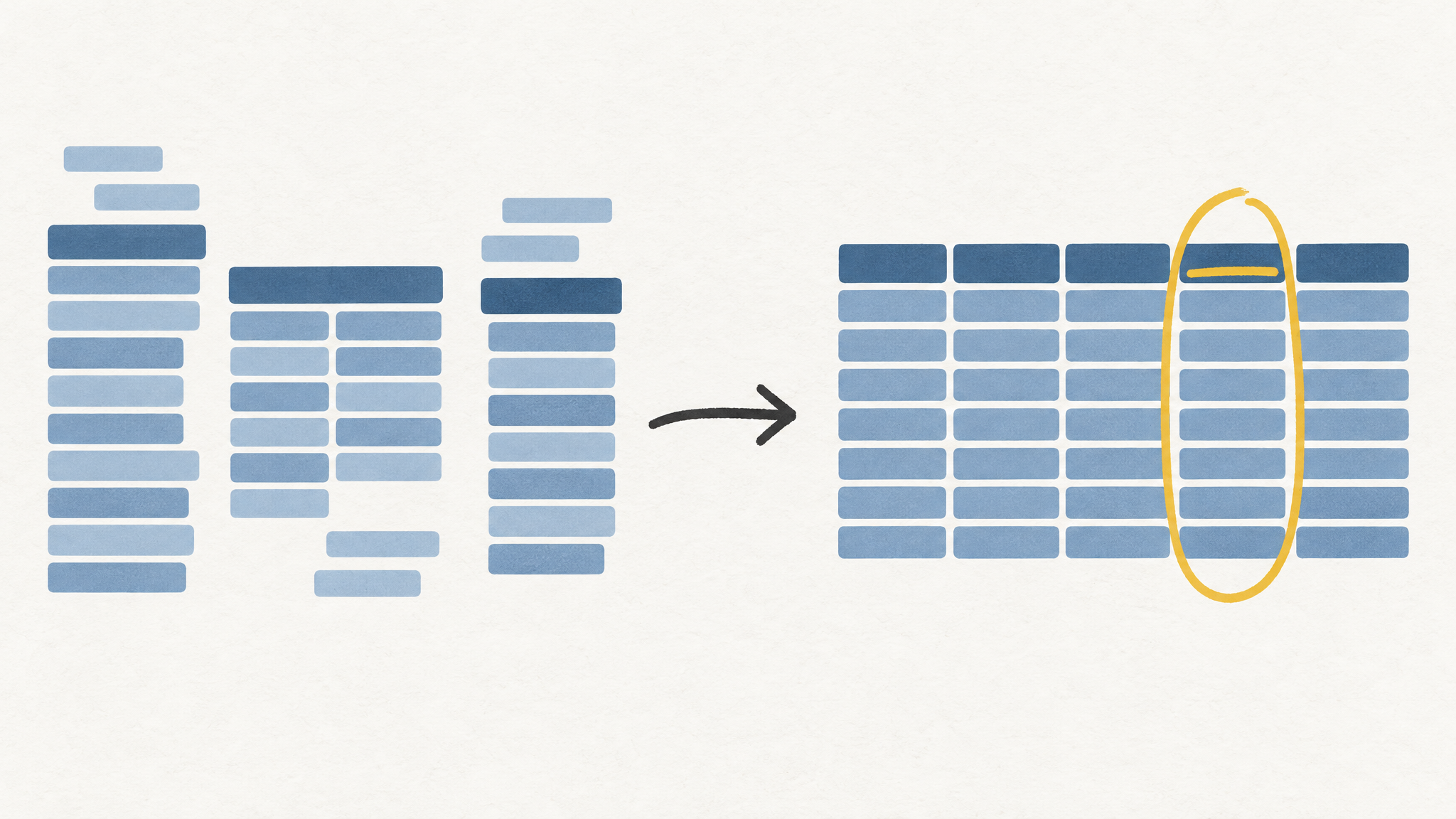
A DBS export puts three rows of account metadata above the header row, OCBC dates often arrive without a year, and UOB files repeat a "balance brought forward" line on every page. Those three quirks break more Google Sheets imports than any formula does. Here is what each column in a Singapore bank CSV means, and how to turn three different layouts into one ledger you can total.
Scope: savings and current account exports from DBS digibank, OCBC internet banking and UOB online banking, imported into Google Sheets. Header names shift between account types and export paths, so check your own header row against the tables below before you build on top of it.
| Build the mapping yourself | CalmExpense | |
|---|---|---|
| Where the data lives | Your Google Drive | Your Google Drive, same sheet |
| Setup | About 40 minutes for the mapping and formulas | Import the CSV, no formulas to write |
| Cost | Your time | S$29.90 one-time, free tier covers the import and dashboard |
The free tier needs no card if you want to compare the output against your own sheet: start here.
The rows above the header are the first thing to delete
Open a DBS CSV in Google Sheets and cell A1 is usually an account number, not a date. The account name, statement period and the available and ledger balances sit above the real header, which lands around row 4 or 5 depending on the account.
Leave them there and every column arrives as text, because Sheets cannot detect a header row that is not at the top. The balance figures also get read as transactions, adding phantom rows before you have typed anything. Delete rows until the header is row 1, then check the date column is left-aligned as a number. If it is still text, use Format, Number, Date.
What each field means
The three banks name the same information differently.
| Field | DBS | OCBC | UOB | What it does to your totals |
|---|---|---|---|---|
| Posting date | Transaction Date | Transaction Date | Transaction Date | The date the money moved. Use this for monthly totals. |
| Description | Reference | Description | Description / Narration | The merchant string, including PayNow and NETS codes |
| Money out | Debit Amount | Debit, or a signed Amount | Withdrawals | Expenses |
| Money in | Credit Amount | Credit, or a signed Amount | Deposits | Refunds, transfers in, salary |
| Reference fields | Transaction Ref1, Ref2, Ref3 | Reference | Reference | Bank-side codes, not merchant names |
| Running balance | Ledger Balance | Balance | Balance | For checking, never for summing |
DBS is the only one that splits the reference into three columns. Ref1 usually carries the counterparty or the channel, Ref2 and Ref3 the bank's own codes. None of them is a merchant category, which is why every category column in a Singapore ledger has to be built from the description text. OCBC varies most by account type: some exports give separate debit and credit columns, others a single amount column where the sign carries direction. Check which one you have before writing a formula.
The missing year, and why it moves money between months
OCBC and UOB exports commonly print dates as day and month only, for example 28/12. Sheets fills the gap with the current year, which is right most of the time and wrong exactly when it matters.
Import a December file in January and 28/12 becomes 28 December of the new year. A S$89.00 gym charge that belongs to last year's budget lands in this one. December looks cheap, January looks expensive, and neither number is real.
One helper column fixes it. With the parsed date in P2:
=IF(MONTH(P2)>MONTH(TODAY()), EDATE(P2,-12), P2)
Any date sitting in the future gets pushed back a year. Blunt, and right for the only case that happens in practice: a file imported within weeks of the year boundary.
Turning three layouts into one amount column
Pick one sign convention and keep it for every bank. I use expenses positive, money in negative, because that is how a spending total reads.
For a DBS or UOB file with debit in C and credit in D:
=N(C2)-N(D2)
N() turns an empty cell into 0, so blank credit cells do not throw an error. Copy it down, then check the sum against the closing balance. If they disagree, you have a phantom row or a text amount. Text amounts are the other silent failure: a debit of 1,234.50 with a thousands separator imports as text and SUM returns 0 with no error. Clean it first:
=VALUE(SUBSTITUTE(SUBSTITUTE(C2,",",""),"S$",""))
UOB needs one more pass. Each page repeats a "balance brought forward" or "balance carried forward" line, and those rows carry a balance value in the amount column. Filter them out before anything else touches the data:
=FILTER(A2:E, NOT(REGEXMATCH(A2:A,"(?i)balance (brought|carried) forward")))
Once the amounts are numeric and the phantom rows are gone, the 1,200-transaction cleanup applies directly, and the PayNow and NETS strings inside the description column can be stripped with these descriptor patterns.
Why the column you ignore is the expensive one
Most people import a statement, sum the debit column, and stop. The credit column is where the corrections live: refunds, transfers in from a joint account, a reversed charge. Skip it and your expense total is too high, which makes your savings rate look worse than it is.
Take a month at the Singapore median: S$4,000 take-home against S$1,986 of expenses. Add a S$219 subscriptions block that includes a S$89.00 gym membership and YouTube Premium at S$22.98. One S$120 refund that never gets netted off moves your Shopping total by 6% of the month, and you set next month's budget from a number that was never true.
The running balance column catches all of it. Opening balance plus the sum of your amount column should equal the closing balance. If it does not, the gap is a missing row, a duplicate or a text amount, and you can find it in a minute.
Where CalmExpense fits
The product is a dashboard that sits on top of your own Google Sheet. You import the CSV, it reads the local column layout, cleans the merchant strings and draws the charts from the sheet in your Drive. No bank login, no server holding your transactions.
Two limits worth knowing. There is no mobile app yet, so you use it in a browser through Google Sheets. Import is manual CSV, not a live bank feed, which is the same constraint as building it yourself. If you are weighing that against a subscription tool, four options compared covers the trade honestly, and the export walkthrough covers getting the file in the first place.
Pricing is S$29.90 one-time for Pro, with a free tier that covers the import and the basic dashboard. YNAB runs about S$147 a year, which is the comparison that matters if you plan to track for more than a few months. Try the free tier and put your own export through it.
FAQ
Why is my header row not row 1?
DBS and some OCBC exports write account details and balances above the table. Delete those rows, then re-check the date column format.
Transaction date or value date?
Transaction date, because it matches the bank app. Value date can sit a day or two later and pushes month-end charges into the next month.
My SUM returns 0 even though the column has numbers. Why?
The amounts imported as text, usually from a thousands separator or a currency prefix. Wrap the column in VALUE(SUBSTITUTE(...)) and the sum works.
Do credit card statements use the same columns?
No. Card statements usually arrive as PDFs with a different layout, which needs a separate import step. Keep card rows on their own tab and merge them at the reporting layer.
The mapping takes about 40 minutes the first time and near zero after that, because every later import uses the same five columns. That is the argument for keeping the ledger in a sheet you own: the rules stay where you can read them.
See your own spending this clearly
CalmExpense turns your bank statement into a clean dashboard inside your own Google Sheets. No bank linking, no subscription. One payment of $29.90.
Start your free trial