
How to Track Your Spending Without Giving Away Your Bank Login
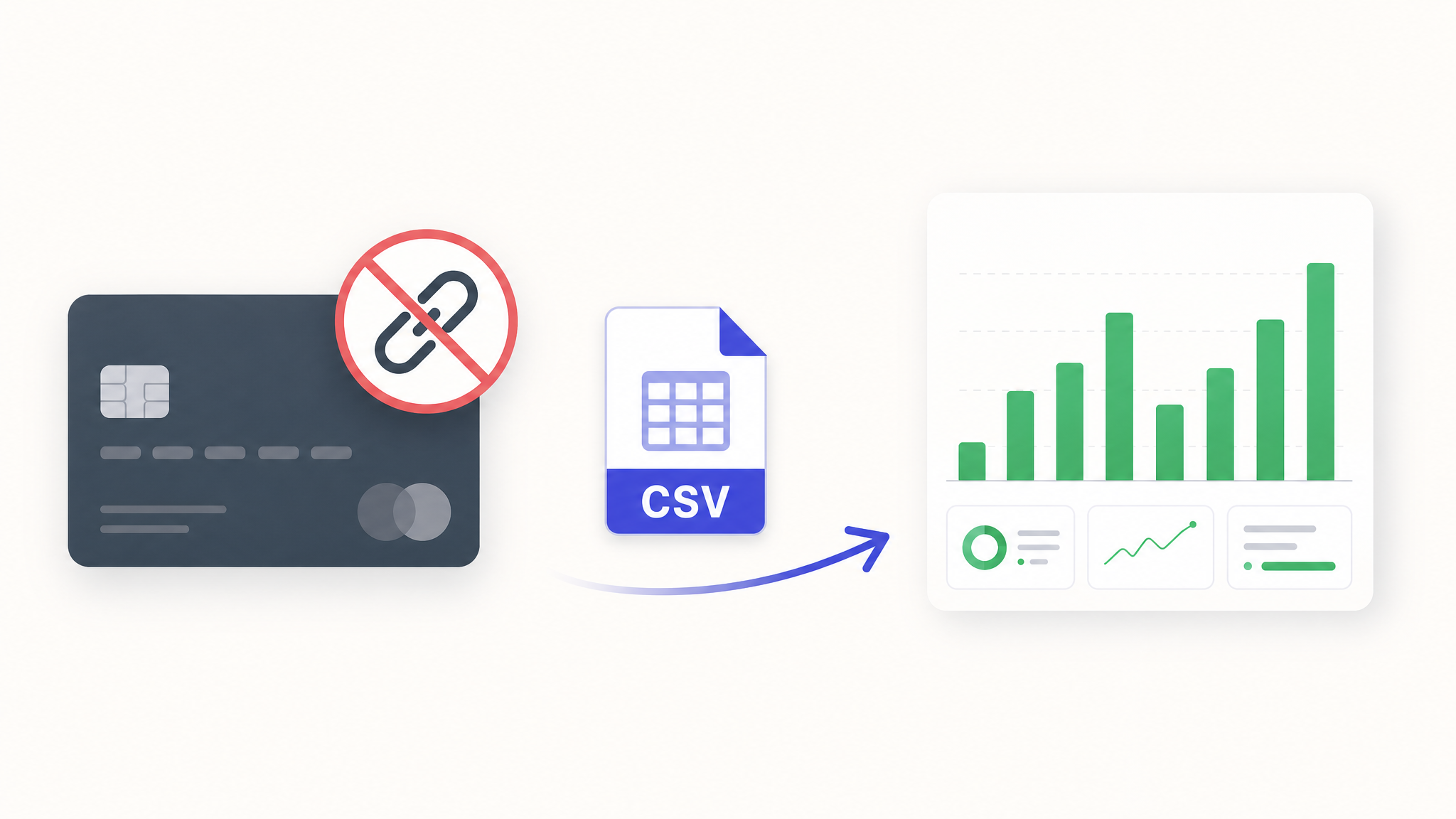
For years I thought there were only two options: link my bank to an app, or track everything by hand and give up by the second week. There is a third way, and it is boring in the best possible sense. You use the export button your bank already has.
Almost every bank in the world, from Chase to Barclays to HSBC, lets you download your transactions as a CSV file. No app in the middle, no login shared with anyone. Here is the workflow I have used for years.
Step 1: Export the CSV from your bank
Log in to your bank the normal way, on the website or app you already trust. Look for a "Download," "Export," or "Statements" option on your account or card activity page. Choose CSV (sometimes called "comma separated" or "Excel") and pick a date range, usually the last month.
The wording differs from bank to bank, but the button is almost always there. If you cannot find it, search your bank's name plus "export transactions CSV" and you will usually get the exact steps.
Step 2: Do this for every account
Export from each account and card separately: your main checking account, your savings, and every credit card. A full picture needs all of them, not just the account your salary lands in.
If you have four cards and two bank accounts, that is six small exports. It sounds like a lot the first time and takes about five minutes once you know where the buttons are.
Step 3: Import, do not retype
Never type transactions in by hand. That is the habit that kills every budgeting attempt by week two. Import the CSV files instead, and let the cleanup happen automatically.
How to clean raw transaction descriptions
Raw exports are ugly. Here is what actual bank transactions look like before and after cleaning:
| Raw description from bank | What it actually is |
|---|---|
POS DEBIT 4021 STARBUCKS #2140 SEATTLE WA | Starbucks |
AMZN MKTP US*Z1A2B3C | Amazon |
GRAB *A-R8X2K4 | Grab (ride) |
NTUC FAIRPRICE #0812 SG | FairPrice |
SQ *GENKI SUSHI 8821 | Genki Sushi |
YOUTUBE PREMIUM | YouTube Premium |
PAYNOW-TRANSFER TO 91XX | PayNow transfer |
DEBIT PURCHASE 3829 SHOPEE SG | Shopee |
The pattern: banks staple a transaction type (POS DEBIT, DEBIT PURCHASE), a reference number, and sometimes a city or country code onto the actual merchant name. The useful part is always in the middle.
To clean these up, you have two options:
Option A: Find-and-replace. Open the CSV in Google Sheets, use Ctrl+H to search for the junk prefix ("POS DEBIT 4021 ") and replace with nothing. Do the same for trailing codes (" SEATTLE WA", " SG"). Five or six find-and-replace passes will clean most of a month's transactions.
Option B: Keyword formulas. Set up a small rules table (keyword in column A, clean name in column B) and use an INDEX/MATCH formula to rewrite descriptions automatically. This is faster from the second month onward because the rules carry over. I covered the exact formula and a sample keyword table in my post on automating expense tracking in Google Sheets.
Once the descriptions are clean, categorization is straightforward: Amazon goes to Shopping, Grab to Transport, FairPrice to Groceries, YouTube Premium to YouTube Premium.
Step 4: Read the picture, not the noise
Once everything is imported and cleaned, the numbers finally speak. Income minus expenses minus savings equals your surplus. That one line tells you more than a hundred individual transactions ever will.
Now you can see the real patterns. The subscriptions you forgot. The category that quietly grew. The month that ran hot because of one big trip. And you got there without handing your bank login to anyone.
Make it a small monthly habit
The whole loop takes about fifteen minutes a month once it is a routine. Export, import, glance, done. No live connection to your accounts, no third party holding your credentials, no subscription renewing in the background. Just you, your own files, and a clear view of where your money went.
See your own spending this clearly
CalmExpense turns your bank statement into a clean dashboard inside your own Google Sheets. No bank linking, no subscription. One payment of $29.90.
Start your free trial